Overwatch 2 LFG on Discord: Fill Tank, DPS & Support
Add Tank, DPS, and Support as roles on a Monvoke /invoke post, and your Overwatch 2 comp group is built around the lineup, not just a headcount. If the group is filling up with no Support in it, the post tells you before anyone queues.
Set up an Overwatch 2 comp LFG with Tank, DPS, and Support roles
After posting, the host adds Tank, DPS, and Support from the Select a role... dropdown under the message and sets a target count for each. Enter the lineup of whichever queue you are playing.
After joining, everyone picks their role from the dropdown under the message. The member list is split by role, so you see who is coming on what, not only how many people said yes.
See the missing role while the group is still filling
Say you post for tonight's comp session. Four people have joined, and every one of them picked Tank or DPS. Nobody is on Support.
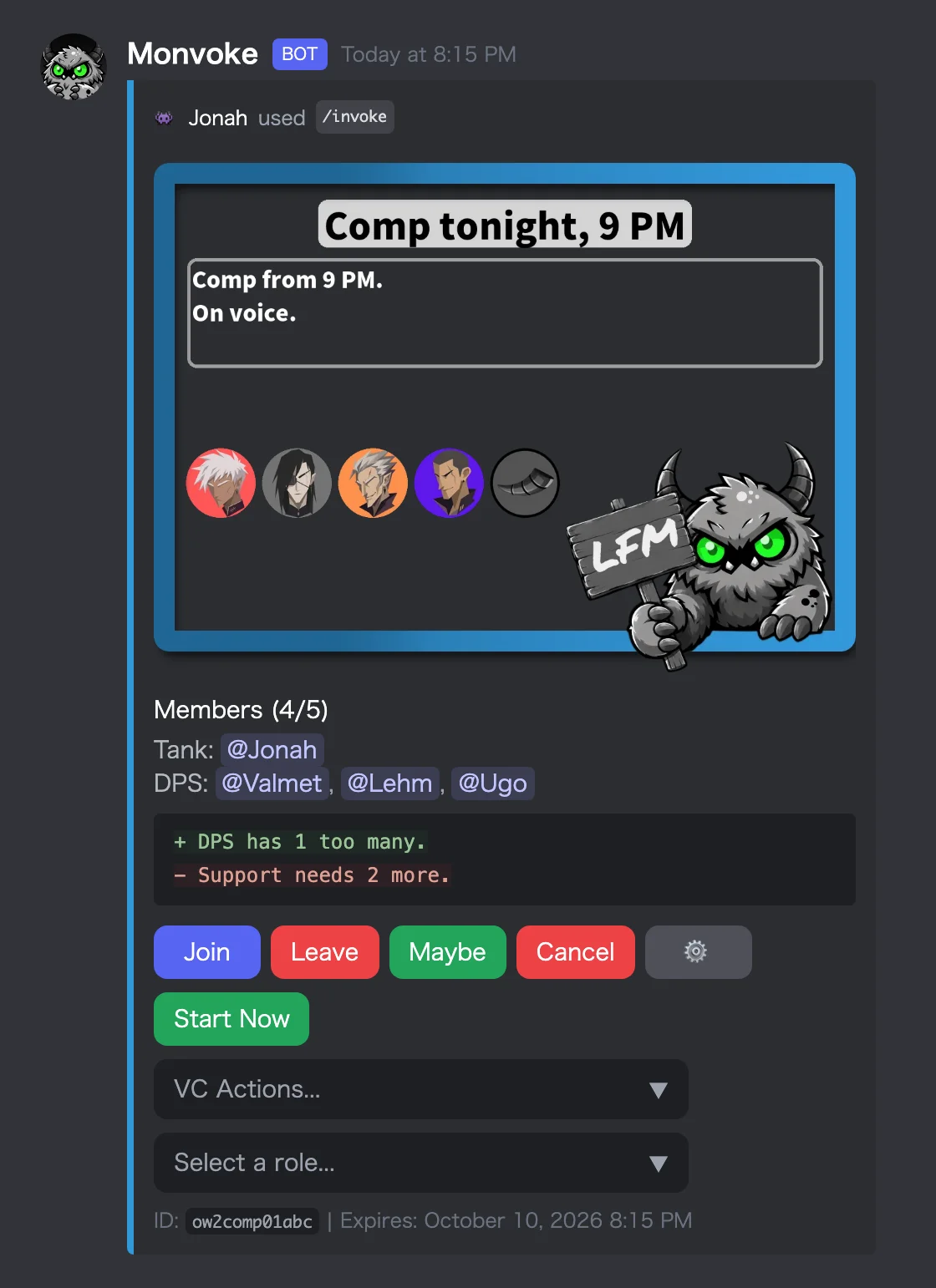
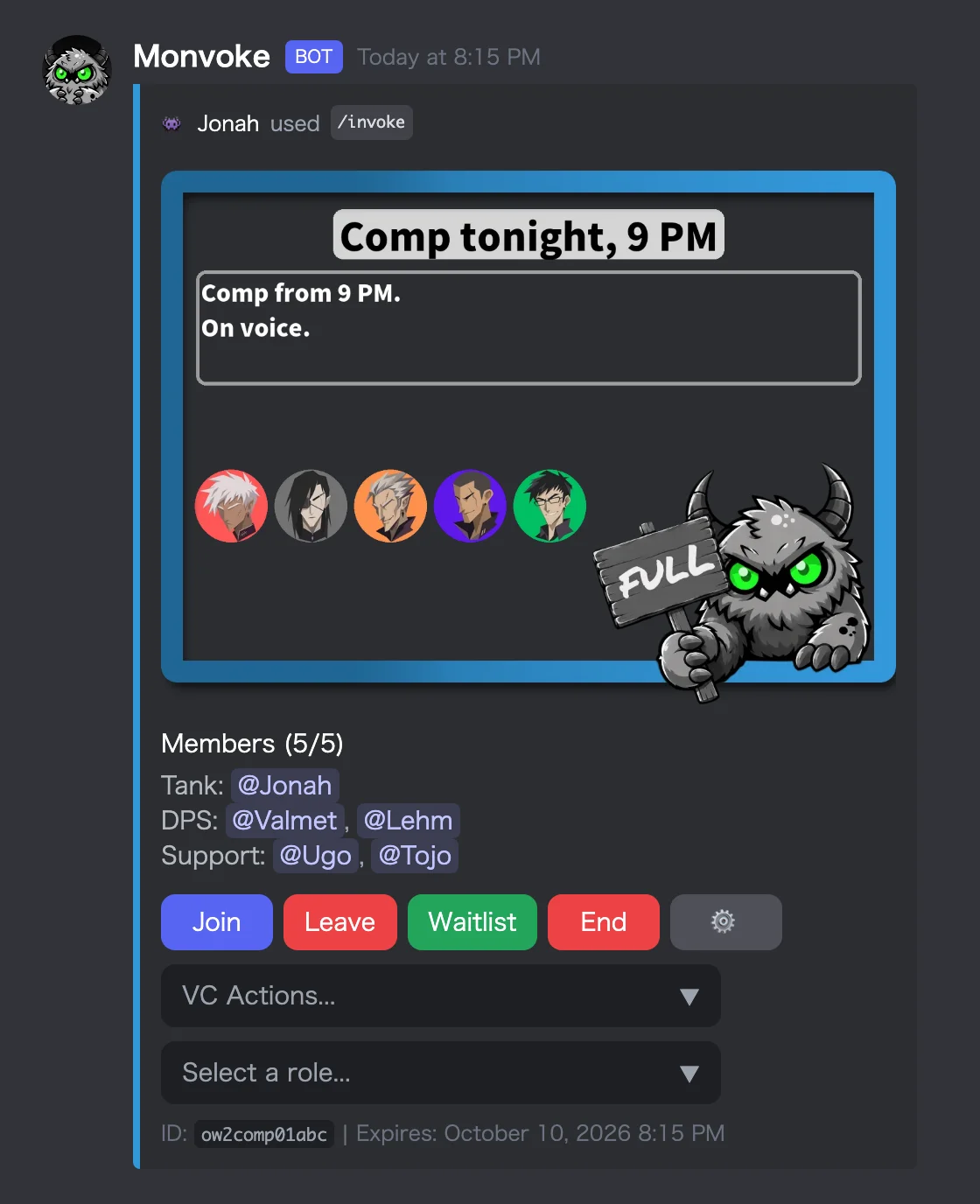
In the left post, the warning calls out too many DPS and too few Supports. Going by the headcount alone, it looks like you are one player short.
One of the DPS players switches their role to Support from the dropdown, the last spot goes to another Support, and the warning disappears. The right image is that same post, full.
Reuse your comp lineup as a preset
If you run the same lineup most nights, you do not have to set up the roles again each time. Save the post as a preset, and /preset posts the same roles in one step.
Keep a separate preset for each mode you play, such as quick play, and run whichever matches the night.
Get a completion DM and a Dedicated VC when the group is full
When the group fills, everyone who joined gets a completion DM. Whoever posted it opens a Dedicated VC for the group through the VC Actions menu on the message.